Google Lens: from a photo to a visit to your website
Translated from the Spanish original. Leer en español

A trainer can start a search even when nobody knows what it is called. There is no need to get "retro sneaker with a terracotta-coloured gum sole" exactly right. Sometimes, showing it to a phone is enough. For once, the keyboard can take a break.
Google Lens lets people search using what appears in an image. For a website, that opens another route to discovery: someone recognises an object, finds a match and may reach a page that helps them identify, compare or buy it. The important part for SEO is not photographing everything. It is understanding what Google can find and how to check whether those searches bring visits.
A recent update makes that easier to measure. On 16 November 2026, Google added web multimodal search data to the Search Analytics API. The Search Console report had already started rolling out in September. These are not two launches of the same report, but two ways to access the data, as explained in Google's official announcements about the API update and the multimodal search report.
What is Google Lens, and how does searching with a photo work?
Google Lens is a visual search tool: it uses a photo, a screenshot or the camera to find information related to what the image shows. Among other things, it can help identify objects or find similar products.
The user does not need to know the exact name of what they are looking for. That is the difference that matters here. A typed search starts with the words someone manages to choose. A visual search can start with a shape, an object or a detail they recognise when they see it.
Google explains how this works in its help guide to searching with images. Its November shopping tips also show Lens as a way to look up products seen in a shop and ask questions about them.
That does not turn every photo into a sale. A search may satisfy someone's curiosity, help them compare options or lead to more searching. It is worth remembering that before commissioning five hundred photos in the hope that the till will learn to ring by itself.
What is the difference between Google Lens, Google Images and multimodal search?
Lens is a visual search tool. Google Images is a surface for image search results. Multimodal search combines input methods, such as an image and text. The three names should not be used as if they referred to the same report.
| Concept | What it describes | What to distinguish when measuring |
|---|---|---|
| Google Lens | A way to search using visual content | Not all multimodal traffic comes exclusively from Lens |
| Google Images | Results in the Images tab | The API identifies this search type as image |
| Web multimodal search | Searches that start with images and may combine them with other inputs | The API offers the webMultimodal type |
| A page on your website | The destination that may receive the visit | An impression or click does not prove a purchase |
If you cannot see all the columns, scroll the table sideways.
The Search Analytics documentation distinguishes image from webMultimodal. The latter includes results from Google Lens, Circle to Search on Android and searches using images uploaded to Google.
So if you see multimodal data, do not automatically present it as "Google Lens visits". You would be giving an entire family a name that belongs to just one member.
Why does Google Lens matter to an online shop or a content website?
Because it lets people discover information before they know which words to use. Someone may recognise the product they want or need to understand something in front of them.
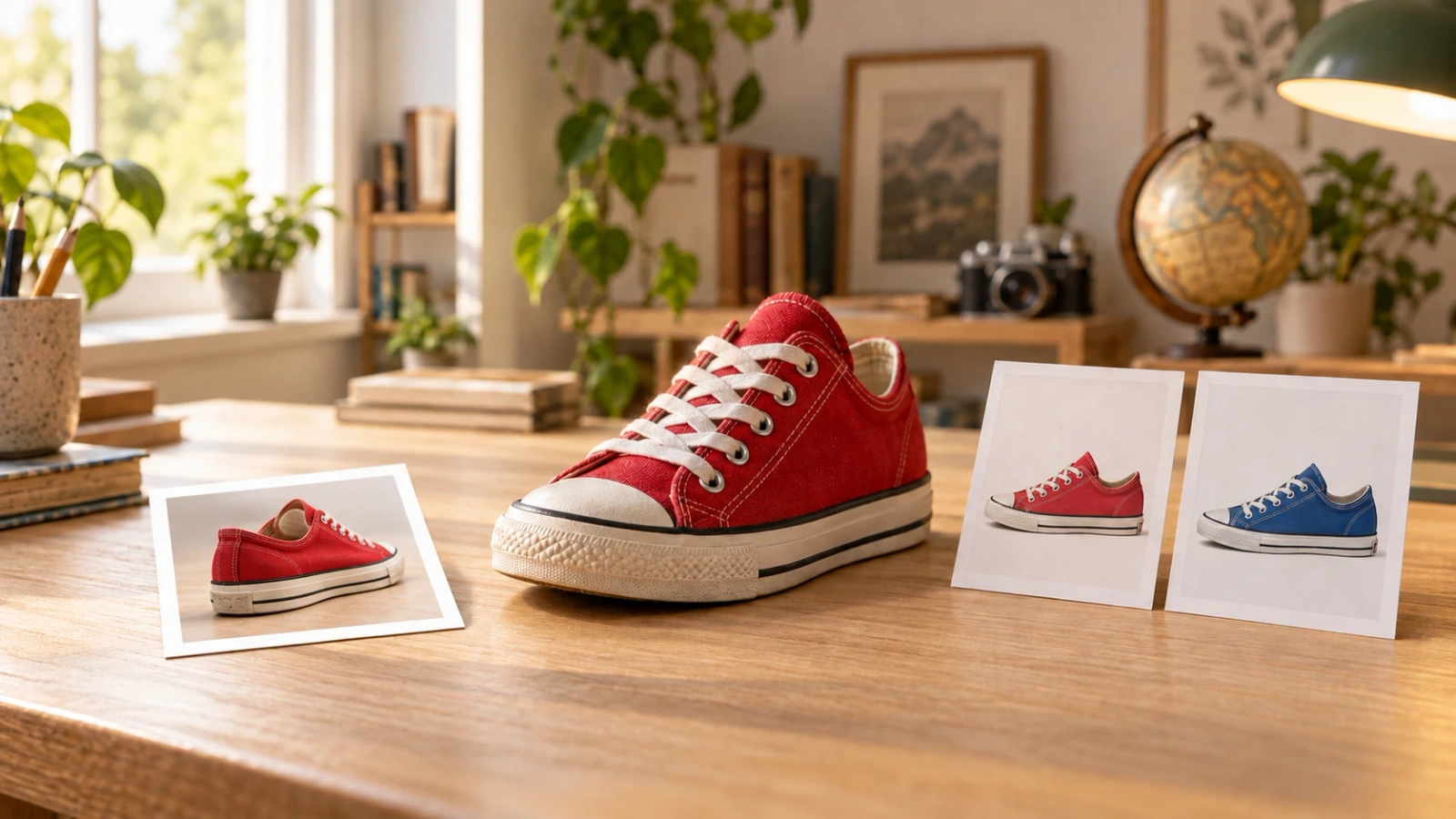
Take a fictional example: a shoe shop publishes a trainer with clear photos and a product page that identifies the model, materials and colours. Someone sees a similar pair in the street and searches using an image. That product page could be a useful destination if it answers what they need to check.
I am not claiming that adding those photos will make the page appear in Lens. I am separating two jobs: helping Google discover and interpret an image, and preparing a page that helps when someone arrives.
A visual match loses much of its appeal if the link leads to a product page that does not explain what it sells. As I explain in my article on product pages that help people choose, photos, specifications, availability and terms need to work together.
Something similar happens on a content website. An image can open the door, but the page needs to explain what it shows and answer a real need. The photo should not be bait for an answer that never appears.
What has changed in Search Console, and what is new in the API?
Search Console started rolling out its web multimodal search report on 24 September 2026. The 16 November update means that the data can also be queried through the Search Analytics API.
The September announcement describes searches from Lens, Circle to Search, uploaded images and Chrome's image search feature. The November announcement adds the webMultimodal type to the API and mentions Lens, Circle to Search and uploaded images.
If you review one website, the report lets you get started without programming. If you maintain a dashboard or work with several properties, the API offers a way to bring the data into your reporting. There is no need to build a dashboard before knowing which question you want to answer.
Google also announced that multimodal data would come to BigQuery for properties with bulk data export enabled. That announcement gives no specific date: I would not treat it as available in a property without checking first.

How can you check whether your website receives clicks from visual searches?
Start in Search Console and look for the web multimodal search type in the performance report. The initial aim is to see whether there is activity, which pages appear and how that changes over a comparable period.
This is the order I would follow:
- Open the correct property for your website.
- Go to the search results performance report.
- Check the search type selector and choose web multimodal, if it appears.
- Set a period covering complete days and check for impressions and clicks.
- Look at the pages receiving that activity.
- Compare periods of equal length and note any changes made to those pages.
The official announcement says that this data appears when a site receives traffic from this type of search. If you see no data, do not conclude that your photos are wrong or your website has a penalty. What you can say is that, in that property, with that filter and period, you are not seeing recorded activity.
If properties and reports still feel confusing, you can start with my Search Console guide. Here, we are looking at one specific part, not replacing a review of the rest of the website.
What data can you read, and which questions does the report leave unanswered?
You can analyse the available performance data by page and other supported dimensions, but you cannot see a list of words explaining every visual search. Google says the query dimension is unavailable for this search type because it is primarily based on images.
The Search Console dimensions help page explains that limitation. Promising a list of "Lens keywords" from this report therefore makes no sense.
It is also worth separating three levels:
- Impressions: your content was shown according to the report's rules.
- Clicks: someone clicked a result leading to your website.
- Business results: enquiries, orders or other actions that you need to measure separately.
Search Console does not turn a click into a sale or prove why someone chose that result. It also does not let you attribute the entire multimodal category to a single tool.
Avoid adding figures from different reports without checking that the search types, filters and periods are compatible. A spreadsheet with more numbers does not necessarily contain more information.
What should you check in your images and their landing pages?
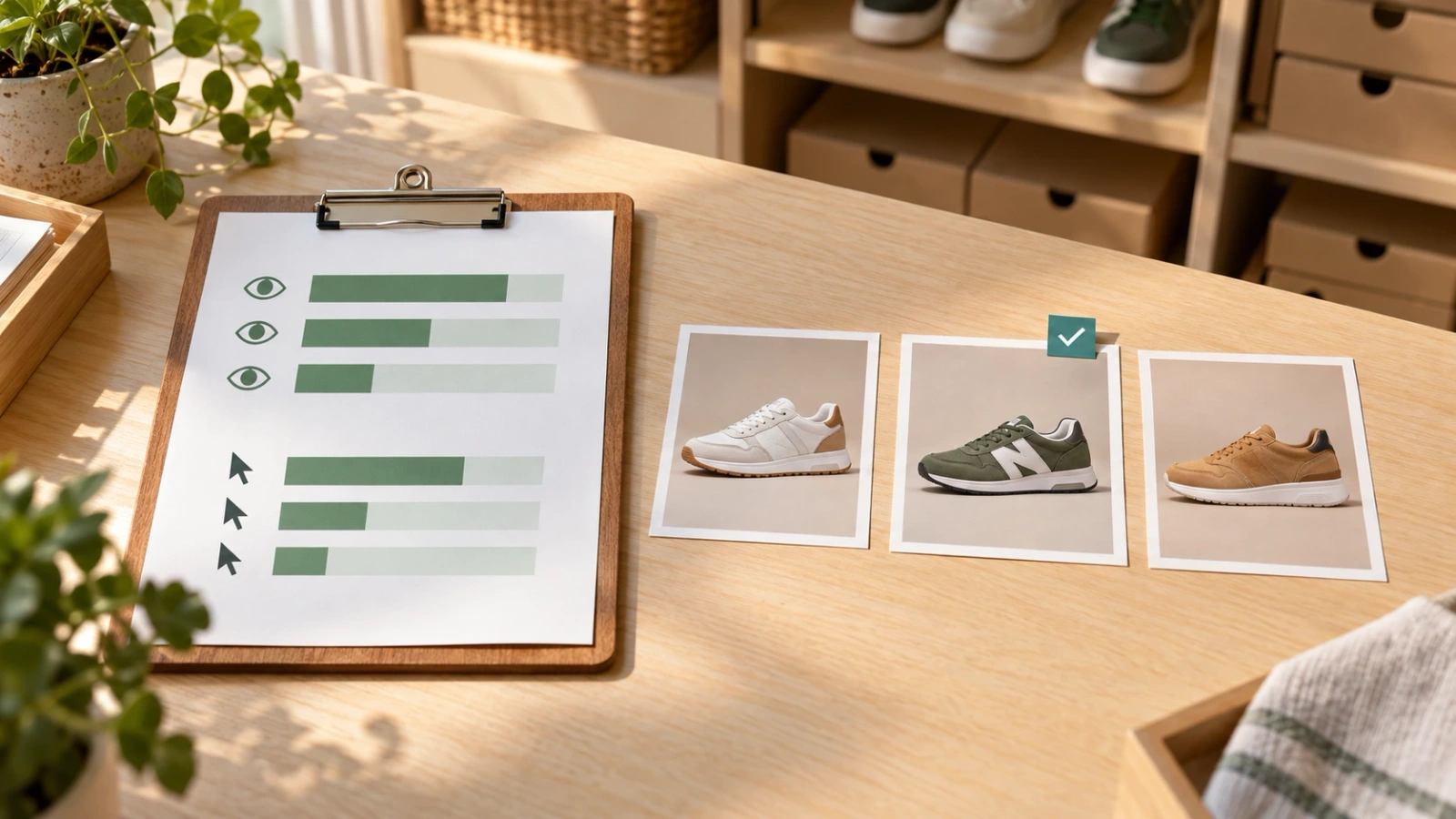
First, check that the images are accessible and properly included in a useful page. Then check that the information on the page matches what is shown. None of this guarantees an appearance in Lens.
Google's image SEO recommendations explain that Google can discover images through HTML image elements and does not index CSS background images. They also recommend taking care of the landing page and providing context around the image.
For a practical review, check:
- That the important image appears in the content and loads correctly.
- That it genuinely represents the product or object being explained.
- That nearby text and alternative text describe it meaningfully.
- That the page identifies what it offers and helps answer the next question.
- That images display well on mobile without slowing the page down unnecessarily.
Alternative text is not a sack for stuffing in every search you would like to rank for. I explain its purpose in more detail in my article on image alternative text.
For formats, sizes and loading, there is already my image optimisation guide. These are complementary jobs: delivering a lightweight photo does not prove that it will be discovered through visual search.
How do you turn this review into an SEO decision?
Choose a small number of pages, record their starting point and write down what you will check before changing anything. This is a suggested workflow, not an official recipe for ranking in Lens.
If a product page receives impressions but few clicks, review how it is presented and which alternatives the user encounters before deciding it needs more text. If it receives clicks but produces no results, look at the offer, availability and page experience too. The problem may start after the search.
If there is no data, review accessibility and usefulness, but avoid inventing a diagnosis. The absence of figures does not tell you, on its own, whether there is a lack of demand, visibility or enough activity to appear in the report.
An SEO audit is precisely a way to put these checks in order before turning a suspicion into an endless list of changes.
What questions often remain about Google Lens and SEO?
Do I need to install Google Lens on my website?
You do not need to embed Lens for an image to be discoverable on Google. The website's job is to make its images accessible and provide useful pages, following Google's recommendations. That does not guarantee selection.
Does the multimodal report measure only Google Lens?
No. It includes other routes, such as Circle to Search and images uploaded to Google. That is why it is best to keep the report's own name when presenting its figures.
Can I find out what each person typed when searching with an image?
Not through this report's query dimension. Google says it is unavailable for multimodal searches.
Do I need the API to start measuring?
No. You can start in Search Console. The API lets you query and integrate data through your own tools or development work; it is not a requirement for opening the report.
Before you finish your coffee
Google Lens is a reminder of something simple: not every search starts with a typed keyword. Sometimes it starts with a trainer and someone who does not even know how to ask for it.
For your website, the job still has two parts: an image Google can find and a page worth visiting. There are now more ways to check whether that visual door is opening. The sensible approach is to measure it using the right name, its limits and a specific question, before changing photos as casually as changing the tablecloth.