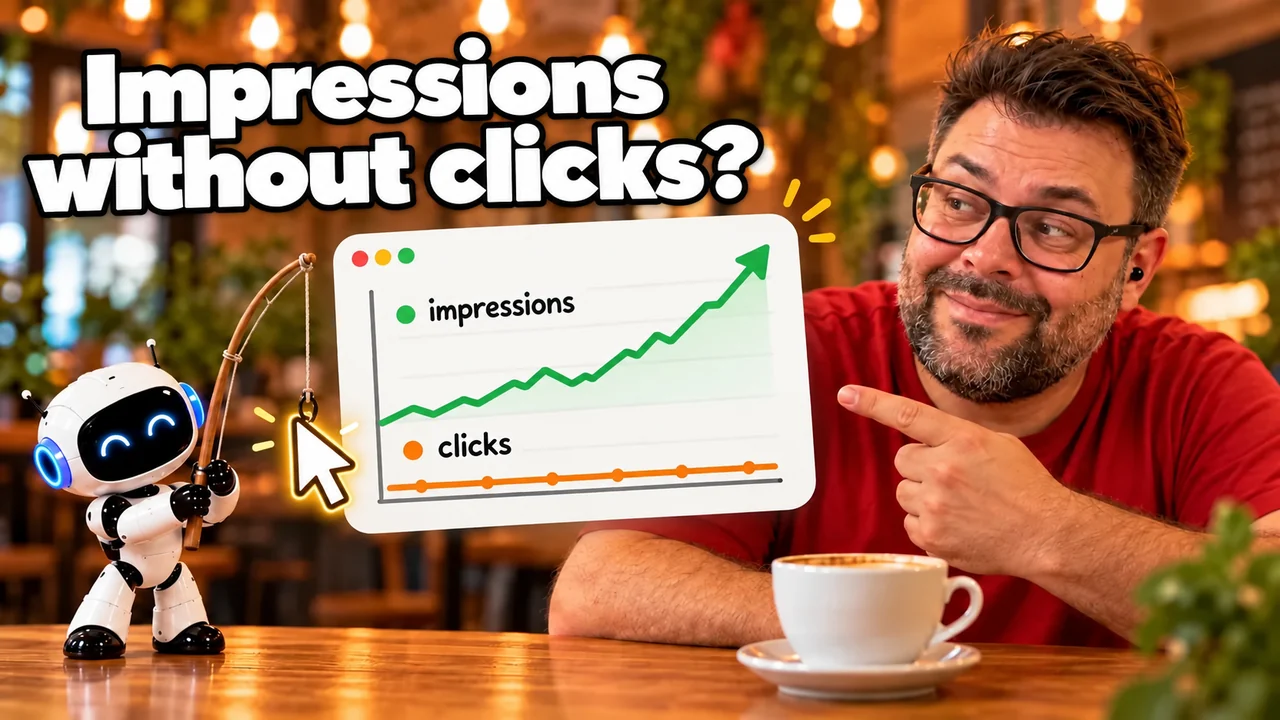
Search Console guide from scratch: what to look at and in what order
Translated from the Spanish original. Leer en español

You open Search Console for the first time and find a menu with more than a dozen reports, colored charts and notices in English. Nobody tells you which to open first. The normal thing is to look at the clicks chart, not understand anything else and close the tab.
The problem for a beginner isn't getting into the tool. It is not knowing which report answers which question and which ones can be ignored without guilt.
This is the guide to put it in order. It is written with Google's official documentation in front of me: every claim about how the tool works carries its link in the same sentence, and when something is my own criterion and not Google's, I say so. It is long on purpose: Search Console could fill an entire training module, so here you have the complete map and, in the following days, we will go down into the detail of the reports that call for it most.
Short answer: in Search Console, look first at the notices on the Overview, then the Performance report every week, and leave the indexing report for when a page is missing or there is a strange jump. About 15 minutes a week is enough for a small website. The tool shows what Google has seen of your website, not what your visitors do inside it.
Before getting into the subject, this is the map of what you are going to read:
| Report | Question it answers | When to look at it |
|---|---|---|
| Overview | Is there anything urgent? | Every time you go in |
| Performance | How many people see me and visit me from Google? | Every week |
| Page indexing | Why isn't this page showing up? | When something is missing or there is a strange jump |
| URL Inspection | What does Google know about this specific page? | When publishing or fixing a page |
| Experience and sitemaps | Does it load well? Does Google know my pages? | Once in a while |
| Manual actions and security | Has a reviewer penalized me or have I been hacked? | Only if they notify you |
If you cannot see all the columns, scroll the table sideways.
What is Search Console and what isn't it?
Search Console is Google's tool that shows how Google sees your website: which pages it knows, which it has indexed, with which searches it shows you and what problems it has found. It doesn't measure what your visitors do inside the website. To get in you only need a Google account, according to Google's getting started guide.
That difference from analytics matters because the numbers almost never match. Google explains it on its page about Search Console data and gives several reasons:
- Search Console usually covers only a sample of your URLs, and other tools may cover a different set.
- It removes duplicates and bot visits, which can change the figures.
- Tools like Google Analytics only count people who have JavaScript enabled.
- The Performance report doesn't show everything: for privacy it omits, for example, very infrequent queries or ones with personal information.
- Data can take two to three days to appear, and the Performance report allocates days according to California time.
If one day you see 140 clicks in Search Console and 120 organic sessions in your analytics, you don't have an error. You have two tools measuring different things (the example is invented).
It is worth learning four words before going on, because they appear in every report. Crawling is Google's robot following links and sitemaps to discover URLs. Indexing is analyzing the page's content and storing it in Google's index. An impression is someone having seen your link in the results, and a click is someone having entered. Google's getting started guide also defines the canonical, the URL Google treats as the main one when there are duplicates, and I explained it calmly in What is a Canonical.
How do you start: properties and verification?
To see data you have to add your website as a property in Search Console and prove it is yours. There are two types: the domain property, which covers all subdomains and protocols and is only verified through DNS, and the URL-prefix property, which covers only the addresses that start with the exact prefix you indicate. Google details it when adding a property.
| Domain | URL prefix | |
|---|---|---|
| What it covers | All subdomains and protocols (http, https) | Only URLs with that exact prefix, including the protocol |
| Verification | DNS record only | Several methods |
| Example (invented) | example.com covers example.com, www.example.com and blog.example.com | https://example.com/ doesn't cover http://example.com/ or the www version |
If you cannot see all the columns, scroll the table sideways.
Which to choose is my criterion, not Google's: if you can touch your domain's DNS, the domain property prevents you from missing data because of a www or non-https variant. If you don't have DNS access, the URL prefix works with other methods, but remember to add the version your website really uses. Google notes that one of the usual reasons for not seeing data is having added the wrong protocol, for example http when the website runs on https, on its page about Search Console data.
To verify ownership, Google offers uploading an HTML file, adding an HTML tag, using the Google Analytics code, using Google Tag Manager or verifying with your domain provider. The points that most puzzle beginners:
- You can add more than one method at a time, and Google advises it in case one fails. If you verified with the Analytics code and someone changes a template and removes it, you lose that method.
- Verification lasts as long as Search Console can check that the code is still in place. If it stops seeing it, it notifies you, and if you don't fix it after a grace period you lose the permissions.
- If you are using WordPress, Wix, Shopify or similar, your platform may already have a plugin or setting to verify. Look there first.
- If you can't verify, a current owner can give you access to the property.
- A verified owner has the highest level of permissions. If the only owner leaves the team, you have to verify again so as not to lose access.
A typical doubt is how long to wait. According to Google, data is collected from the moment someone adds the property, even before verifying, although it takes a few days to accumulate. Its page about Search Console data speaks of up to a week for a new or recently added website. If after that week you still see nothing in Performance, it may be that there are no clicks yet.

What do the numbers in the Performance report mean?
The Performance report shows four metrics: clicks, impressions, CTR and average position. By default it shows the last three months of Google search results, and you can change metrics, dimensions and dates, according to the report guide. It is the report most opened and the one most misread.
The metrics, as Google defines them in that same guide:
- Clicks: the times someone entered your website from the results.
- Impressions: the times your website appeared in the results.
- CTR: clicks divided by impressions.
- Average position: the position of your site's highest result.
The dimensions group the table: queries, pages, countries, devices, search appearance and dates. With them the useful questions get answered. In common tasks of the report Google proposes several very concrete routes:
- To see your searches with the most traffic, open the Queries tab and sort by clicks, CTR or impressions.
- To see your pages with the most traffic, open Pages, choose clicks and sort.
- To find pages with low CTR, choose the CTR metric, open Pages and sort from lowest to highest. A low CTR, says Google, can indicate that people see your page but don't believe it answers their search. The suggestion is to review the title and the description.
An invented example to make it visible: a sample page with 12,000 impressions and 60 clicks has a CTR of 0.5%. It doesn't say the page is bad. It says it is shown a lot and clicked little, and that it deserves a review of the title and description before touching the content.
The most common reading mistakes have an explanation in the documentation:
- The average position in the chart is that of the highest result of your whole site. In the table, it is that of the URL or group in that row. That is why it shouldn't be treated as "my position" plain and simple.
- The totals in the chart and the table may not match, because in the chart data is aggregated by property and, when grouping by pages, it is aggregated by page, according to the report guide.
- A query can appear in your table and you not see yourself when searching it, because results depend on the moment, place, device and history of the searcher.
- The most recent data can be provisional and is marked with a dotted line.
- Not all queries appear: Google omits those anonymized for privacy and only keeps the most important rows, so the report isn't a complete listing. For the most complete listing, Google points to bulk data export, according to the report dimensions page.
Two settings that change the reading. Weekly or monthly granularity smooths the ups and downs of weekends and holidays, and daily is for detecting spikes or problems, according to the report guide. The branded and non-branded queries filter separates those who already know you from those who discover you; Google says it only provides data since March 11, 2025 and that it isn't available in subproperties or on websites with few impressions, according to common tasks.

Why isn't a page on Google? The indexing report
The page indexing report shows which URLs Google has found, which it has indexed and why it hasn't indexed the rest. Not indexing a URL isn't always an error: it can be what is expected, for example with a duplicate, a page with noindex or a 404 of a page you deleted, according to the report documentation.
That same documentation carries a warning almost nobody reads: if your website has fewer than 500 pages, you probably don't need this report. Google suggests checking with searches: typing site:yourdomain.com to see a sample of what it knows, adding terms from your key pages, or searching the exact URL of an important page. Only if those searches return nothing and you want to understand the report in depth does it make sense to open it.
What to look for and what not, according to Google:
- All your important URLs should be indexed. Duplicates shouldn't be: a page showing up as duplicate or alternate is usually a good sign, because it means Google found the canonical.
- Don't expect all URLs to be indexed, nor the total to match to the cent the number of pages you think you have.
- An indexed page doesn't guarantee it shows up in your searches, because results change by user, place and history.
- The report's example list has a maximum of 1,000 URLs, even if the total is correct.
- A new website can take around a week to start being crawled and indexed.
These are the most frequent reasons for "not indexed" and what Google says about each, according to the report documentation. The names are as they appear in the documentation, in English.
| Reason | What it means | What to do |
|---|---|---|
| Crawled - currently not indexed | Google crawled it but didn't index it. It may index it later | There is no need to request crawling again |
| Discovered - currently not indexed | Google found it but hasn't crawled it yet, normally to avoid overloading the site | Wait |
| URL marked 'noindex' | Google found a noindex directive | If you want it indexed, remove the tag or the header |
| URL blocked by robots.txt | The robots.txt file blocked crawling | Careful: it doesn't guarantee it won't be indexed by other routes |
| Duplicate without user-selected canonical | It is a duplicate and you didn't indicate which is the preferred one | It isn't an error. Set the canonical if Google chose wrong |
| Duplicate, Google chose different canonical than user | Google sees another URL as a better canonical than the one you declared | Inspect the URL and compare both |
| Page with redirect | Non-canonical URL that redirects to another | The destination may be indexed |
| Not found (404) | The URL returned a 404 | Normal if you deleted it without a replacement. If it moved, use a 301 |
| Soft 404 | It shows a "not found" message without returning a 404 code | Return a real 404 or clarify the content |
| Server error (5xx) | The server returned a 500 error | Fix the server |
If you cannot see all the columns, scroll the table sideways.
There is a robots.txt detail that links to an earlier article: Google indicates that, to make sure a page isn't indexed, you have to remove the robots.txt block and use noindex. I explained it in Robots.txt is not a lock. If what worries you is a drop in indexed pages, you have the protocol in If Google started deindexing your pages. If Google ranks a different URL from the one you wanted, the diagnosis is in Google ranks another URL.
One last nuance from Google's documentation on pages missing from Google: before assuming a problem, let at least a week pass after submitting a sitemap or requesting indexing, and first check that the page really is missing and not that it appears lower than you expected.

What does Google see on a specific page? URL Inspection
The URL Inspection tool tells you what Google knows about a specific page of your property and lets you test whether it could be indexed. It opens by typing the full URL in Search Console's top bar or with the Inspect link that appears next to a URL in many reports, according to the tool documentation.
What is most misunderstood is the difference between two results. The indexed status shows the last version Google stored, not the current version of your website. The live test checks the version as of now. If you fixed something, test the URL live to see whether Google already sees it right.
With it you can, according to Google:
- See a URL's status in the index and why it could or couldn't be indexed.
- Inspect the live version to know whether it could be indexed.
- Request that Google crawl a URL.
- See how Google renders the page, with a screenshot included.
- Check the canonical chosen by Google. It is only seen in the indexed data: the live test can't predict which URL will be considered canonical.
Three limits worth remembering. "URL is on Google" means it can appear in the results, not that it will appear. The test doesn't check whether the page meets quality and security guidelines, whether the site has manual actions or security problems, or whether there is a temporary removal block. There is also a daily limit of inspections per property. All this is in the tool documentation.
For a new website, the first step Google recommends is requesting indexing of the home page, according to the indexing report. Requesting indexing isn't a magic button: you already saw that Google suggests waiting a week before assuming a problem.
What is in Experience, enhancements and sitemaps?
In that part of the menu are the Core Web Vitals reports, the rich results ones and the sitemaps one. None needs to be looked at every week. They are for reviewing loading experience, structured data markup and whether Google can read your sitemaps. The full list is in Reports at a glance.
The Core Web Vitals report uses real user data, not lab tests. It groups URLs by status (poor, needs improvement, good), by metric (LCP, INP and CLS) and by groups of similar pages. Three things explain it:
- Only indexed URLs appear, and it is a sample, not a complete listing.
- A group's status is that of its worst metric.
- If you see "No data available", either your property is new or there isn't enough CrUX report data for that device.
For a specific URL, Google points to PageSpeed Insights and Lighthouse.
The rich results reports show which rich results Google has been able to crawl, with one report per type, and the Rich Results Test is for testing any page, even outside your property, according to Reports at a glance. All the markup is explained in Schema isn't magic, with the validators worth using.
The sitemaps report is for telling Google where your sitemap is, seeing the submission history and the errors when processing it. There are three clarifications from Google that save work:
- If you use a hosting service like Squarespace or Wix, it probably already manages the sitemap for you.
- If you have about 500 pages or fewer and can reach any of them from the home page, you probably don't need a sitemap or this report.
- "Submitting" a sitemap is telling Google where the file is. It can't be uploaded to Google. To submit it with the report you need owner permissions.
What each file does, sitemap included, is in Robots.txt is not a lock.
A warning about the removals tool: Google describes it as a temporary block of URLs in the results, not as a way to delete them from the index. Use it knowing that.
Which alerts shouldn't be ignored?
There are three things that do deserve immediate attention: a manual action, a security issue and a sharp drop in clicks. Google's getting started guide indicates that your property's dashboard warns about security issues and manual actions, and that you also receive an email when they occur. If the dashboard shows nothing, there is no need to open those reports.
A manual action, according to the manual actions report, is what Google applies when a human reviewer determines that pages of your site violate its spam policies. It can leave part or all of the site out of the results, and often with no visible notice for the user searching. If you have one, they tell you in the report and in the messages center.
The security issues report covers three categories: hacked content, malware or unwanted software, and social engineering. The affected pages may show up with a warning label in the results or with a warning page in the browser.
The links report shows which websites link to you, with what text and which are your most linked pages. Three nuances from the documentation avoid misreadings:
- It is a sample, not a complete listing, and the tables are limited to 1,000 rows.
- It includes links Google found over time, even if they no longer exist, and it doesn't indicate whether a link is nofollow.
- It groups by root domain, so subdomains and subfolders are lumped together.
A sharp drop in clicks is investigated starting with the Overview and the Performance report, and Google's help has its own guide to find out why traffic has dropped.
In what order do I look at everything?
The order I propose goes from the urgent to the informational: notices, performance, indexing only if needed and the rest once in a while. Google says in its getting started guide that for many users a quick review once a month is enough, unless they are notified of a problem. The weekly cadence I propose here is my own criterion, for those who publish often.
If you prefer that I do this review, you can see what my SEO audit includes.
- Go to the Overview and check that there are no manual actions or security issues. Two minutes.
- Open Performance, compare the last weeks with the previous ones and look at queries and pages that rise or fall. Five minutes.
- Sort pages by CTR ascending and note those that are shown a lot and clicked little to review title and description. Three minutes.
- Open the indexing report if you published new pages, if the total falls or if something important is missing. If your website has fewer than 500 pages, start with the
site:searches. Three minutes. - Inspect the URL of the last thing you published or fixed. Two minutes.
Once a month, review Core Web Vitals, sitemaps and rich results.
Search Console doesn't tell you what to do. It shows you what Google has seen, and from there comes your work list. If you do that pass every week for a month, you will know more about your website than most of those who open it once a year.

Frequently asked questions about Search Console
How long does data take to appear in Search Console?
Data for a new property takes a few days to accumulate and Google speaks of up to a week for a new or recently added website. After that, the reports usually show data with a two or three day delay. Both figures come from Google's official help cited in the previous sections.
Do I need the indexing report if my website is small?
If your website has fewer than 500 pages, Google indicates you probably don't need that report. To check, it is enough to search site:yourdomain.com and the exact URL of an important page. Only if nothing appears does it make sense to open the report.
Why don't Search Console and Google Analytics match?
They measure different things: Search Console counts appearances and clicks on Google, and Analytics counts visits with JavaScript enabled. Search Console also removes duplicates and bot visits. It is normal for the figures of the two not to match.
What is the first report I should look at in Search Console?
The Overview, to check that there are no manual actions or security issues. Then Performance, where you see your website's clicks, impressions, CTR and average position on Google.
Reviewed on October 11, 2026 against the official Search Console documentation by Alejandro Castillo Cantón.